Cloud file storage without syncing is quietly becoming the preferred way professional and service-based businesses manage shared files, because it skips the sync folder entirely and keeps one true copy of every document on a server. Instead of copying files down to every laptop, as Dropbox, Google Drive, and OneDrive do, this model mounts a cloud drive directly, the same way an office file server has always worked. For small businesses juggling dozens of apps, that difference matters. In addition, it eliminates the conflicted-copy headaches, the laptop storage crunch, and the stale-file confusion that come with traditional sync tools.
Quick answer: Cloud file storage without syncing means your files live permanently on a remote server, and you open, edit, and save them directly over the network rather than syncing local copies to each device. As a result, there is no duplicate file to fall out of date, and no sync conflict to resolve.
What Is Cloud File Storage Without Syncing?
Cloud file storage without syncing is a method of keeping business files on a remote server that every device accesses directly, instead of downloading a separate copy to each laptop or desktop. Specifically, it mounts like a traditional network drive: a drive letter on Windows, a volume on macOS, or a mount point on Linux. Because there is only one copy of each file, everyone who opens it is working with the current version.
This differs sharply from services built around a local sync folder. With a sync client, every computer gets its own copy, and a background process tries to keep those copies matched over time. Consequently, there is always a short window where files are out of date, and a real risk that two people editing offline will create duplicate, conflicting versions. The general concept of cloud computing covers both approaches, but they behave very differently in daily use.
Why Sync-Based Cloud Storage Falls Short for Growing Teams
Sync-based tools were originally built for individuals backing up personal files, not teams collaborating on shared documents. Therefore, as a business adds staff, the cracks start to show. Two employees edit the same proposal while traveling, and the service cannot merge the changes, so it saves both as separate, conflicting files. Meanwhile, laptops fill up with local copies of every shared folder, slowing down machines that were never meant to store terabytes of client data.
The hidden cost is time. According to research from the McKinsey Global Institute, employees can spend close to 1.8 hours a day, roughly 9.3 hours a week, searching for information or recreating documents that are hard to locate. In a sync-heavy environment, much of that time goes toward figuring out which file version is actually current. For a service-based firm, that is billable time disappearing into file management rather than client work.
Furthermore, sync tools rarely connect to anything else the business runs. A contract saved in a sync folder has no natural link to the CRM record for that client, so staff end up copying file paths or re-uploading documents by hand into other systems.

Cloud file storage without syncing keeps every document on one central server instead of scattered local copies.
How Cloud File Storage Without Syncing Works
Under the hood, server-based cloud storage typically relies on the SMB protocol, short for Server Message Block, a standard that has powered office file servers for decades. You can read more about how it functions on Wikipedia's SMB protocol overview. When a device mounts a share using SMB, it is not downloading the files; it is simply opening a window into the server's storage over the network.
In practice, this means opening a spreadsheet works the same way it would on an old-fashioned office server: the application reads the file directly from the server, and saving writes the changes straight back. No background sync engine has to catch up later, and no local copy lingers on the hard drive after you close the file. The National Institute of Standards and Technology's formal definition of cloud computing notes that on-demand network access is a core trait of cloud services, and this model delivers that access without the baggage of local duplication.
Platforms like Atlas File Storage apply this approach specifically for small and mid-sized businesses, so teams get an enterprise-grade file server experience without needing a dedicated IT administrator to maintain it.
Cloud File Storage Without Syncing vs. Sync Folders: Key Differences
The practical differences show up quickly once a team compares the two models side by side.
- File location: Sync tools store a copy on every device; server-based storage keeps one copy on the server only.
- Conflicts: Sync folders can create duplicate, conflicted files; a non-syncing cloud file server avoids this because there is nothing to reconcile.
- Local storage use: Sync folders consume laptop disk space; mounted drives use minimal local space since files stay remote.
- Setup: Sync tools need a client installed and configured on every device; a mounted drive often requires only a one-time connection step.
How to Move Your Business to Cloud File Storage Without Syncing
Switching away from sync folders does not have to be disruptive. The following steps outline a practical path most small and mid-sized businesses can follow.
- Audit your current file sprawl. List every place files currently live, including Dropbox, Google Drive, OneDrive, email attachments, and local desktop folders, so you understand the full scope of what needs to move.
- Choose a server-based storage platform. Select a cloud file storage platform that mounts as a true network drive using a standard protocol like SMB, rather than one that only offers a sync folder client.
- Map network drives on every device. Connect each Windows, Mac, and Linux computer in the office to the new storage as a drive letter, volume, or mount point so every team member can access files the same way.
- Migrate files and set permissions. Move files into the new structure in batches, assigning folder-level permissions so each employee or team only sees the client and project files relevant to their role.
- Retire old sync folders. Once staff confirm the new drive works reliably, remove legacy sync clients from every device to prevent duplicate copies and stop accidental edits to outdated local files.
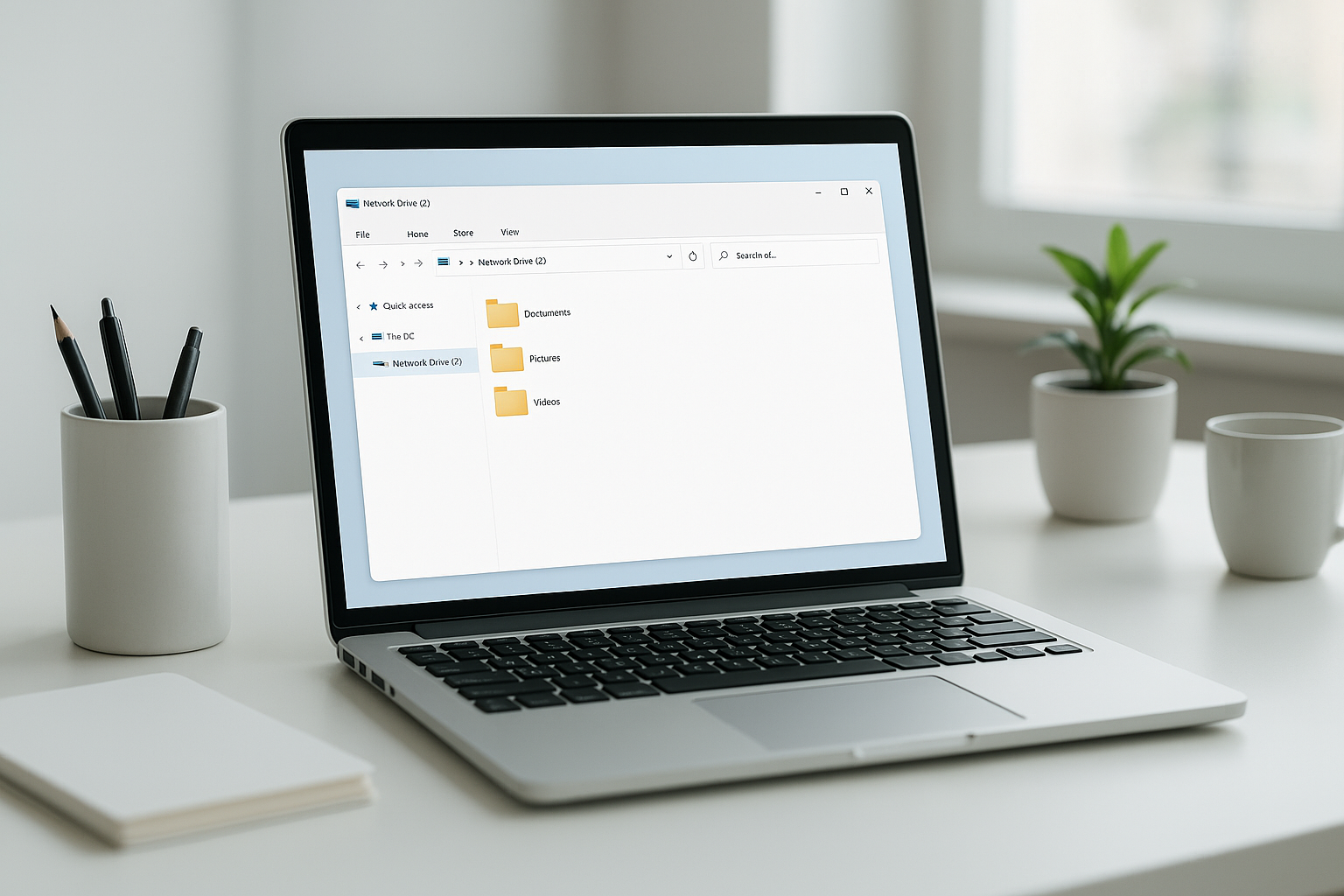
Mounting a network drive lets teams open and save files directly without waiting for a sync process.
Who Benefits Most From a Non-Syncing Cloud File Server
Professional and service-based businesses with anywhere from a handful of employees to several hundred tend to gain the most from a non-syncing cloud file server. Typically, these are law firms, accounting practices, consultancies, and similar teams that need enterprise-grade reliability but do not have a Salesforce administrator or a Microsoft 365 specialist on staff. Since the storage behaves like a familiar office file server, there is little retraining involved.
Businesses that already juggle separate subscriptions for files, calendars, and client contacts stand to gain even more when storage connects natively to those other tools. For example, Hyperion Works built Atlas specifically around that idea: one login through Atlas IAM, with files, CRM, and calendar sharing the same identity layer so client records and documents stay linked automatically. Visit atlascore.app to see how that approach applies to file storage specifically.
Common Mistakes When Choosing a Cloud Storage Solution
Many businesses assume all cloud storage works the same way, which leads to disappointment once file conflicts start piling up. Others pick a tool based purely on price without checking whether it integrates with the CRM, calendar, or email system the team already relies on. Consequently, staff end up doing manual data entry that defeats the purpose of moving to the cloud in the first place.
Another frequent mistake is skipping permission planning during migration. Without clear folder-level access rules, sensitive client files can end up visible to the entire company. Taking the time to map permissions before migrating, as outlined above, prevents this problem from the start.
Choosing cloud file storage without syncing removes the duplicate-file clutter that sync tools create over time.
Frequently Asked Questions About Cloud File Storage Without Syncing
What is cloud file storage without syncing?
Cloud file storage without syncing is a system where files live permanently on a remote server and are opened, edited, and saved directly over the network instead of being copied to a local sync folder. There is one true copy of every file, so nothing has to be reconciled between devices.
How does cloud file storage without syncing work?
It works by mounting a server-based drive directly onto your computer using a standard file-sharing protocol, similar to an office file server. When you open a document, you are working on the live file, and your save writes straight back to the server.
Why do synced cloud drives cause conflicted copies?
Synced drives keep a separate copy of each file on every device, and when two people edit the same file offline or at the same time, the service cannot merge the changes. As a result, it creates a conflicted copy instead of one accurate version.
Is cloud file storage without syncing more secure than sync-based storage?
Generally, yes, because sensitive files are not duplicated across laptops, phones, and home computers that may be lost, stolen, or unmanaged. Centralized permissions on the server also make it easier to control exactly who can see or edit each file.
What protocol does non-syncing cloud storage use?
Most server-based cloud storage platforms use the SMB protocol, the same standard that traditional office file servers have used for decades, to mount a network drive. This lets the storage appear as a normal drive letter or volume without any special sync client.
How much does cloud file storage without syncing cost compared to Dropbox or OneDrive?
Pricing is often comparable per user, but the real savings come from eliminating duplicate storage costs, lost productivity from file conflicts, and the extra tools businesses buy to patch sync problems. Bundled platforms can also reduce the total number of subscriptions a business pays for.
Can I access files offline without syncing?
Offline access works differently than with sync tools, since files are not automatically downloaded to your device in advance. However, most platforms let you manually open files for offline editing when you know you will not have a connection.
What is the difference between cloud file storage without syncing and traditional sync tools?
Sync tools copy files to every device and then try to keep those copies aligned, which can take time and cause conflicts. Cloud file storage without syncing skips the copying step entirely, so every device reads and writes the same server-based file directly.
How long does it take to switch to cloud file storage without syncing?
For a small or mid-sized business, migration typically takes a few days to a couple of weeks, depending on file volume and how many folders need permission mapping. Most of that time is spent organizing files, not on the technical setup itself.
What mistakes do businesses make when choosing cloud storage?
A common mistake is assuming sync folders are the same as a real file server, which leads to conflicted copies and version confusion as teams grow. Another is ignoring how storage integrates with other tools like CRM and calendars, which forces staff to copy data manually.
Does cloud file storage without syncing work on Mac, Windows, and Linux?
Yes, server-based cloud storage typically mounts as a drive letter on Windows, a volume on macOS, and a mount point on Linux using the same underlying protocol. This cross-platform support means mixed-device offices do not need separate setups.
What business sizes benefit most from cloud file storage without syncing?
Professional and service-based businesses with anywhere from a handful of employees to several hundred tend to benefit most, since they need reliable shared files but rarely have a dedicated IT administrator. Larger enterprises with IT teams can also use it, but the simplicity advantage is greatest for lean teams.
How does Atlas File Storage avoid syncing?
Atlas File Storage mounts as a real network drive using the SMB protocol instead of copying files down to each device. Files stay on the server at all times, so opening and saving a document always works with the current version.
What are best practices for cloud file storage without syncing?
Set clear folder permissions, train staff to save directly rather than keeping local copies, and periodically review access lists as employees join or leave. Pairing storage with a platform that also handles CRM and calendar data further reduces duplicate work.
Final Thoughts
Ultimately, cloud file storage without syncing solves a problem most businesses have learned to live with rather than fix: scattered files, conflicted copies, and the quiet time drain of managing versions across devices. By mounting files directly from a server instead of duplicating them locally, teams get one accurate copy of every document and fewer tools to babysit. For professional and service-based businesses without a dedicated IT department, that simplicity, paired with genuine integration between files, calendars, and client records, is what makes the difference between software that adds friction and software that gets out of the way. Learn more about this approach at atlascore.app.