
Shared Calendar for Small Business: Complete Guide
A shared calendar for small business teams is the single upgrade that ends double-bookings, missed client calls, and the endless "what time works for you?" email chain. Instead of five private calendars that nobody else can see, one live schedule shows exactly who is free, who is booked, and what is coming up next. For small professional and service firms running lean without a dedicated IT department, fixing scheduling this way is one of the fastest, cheapest wins available — and it pays off in the first week.
Quick answer: A shared calendar for small business is a scheduling system where every authorized employee views and updates the same set of appointments, meetings, and deadlines in real time. It removes double bookings, keeps remote and in-office staff aligned, and — when tied to a CRM (customer relationship management system, the software that stores client contact history) — automatically links every meeting to the right client record without manual data entry.
What Is a Shared Calendar for Small Business?
A shared calendar for small business is exactly what it sounds like: one calendar, visible to the whole team, instead of several private ones that nobody else can check. Rather than emailing availability back and forth, staff simply open the shared view before booking a client call or internal meeting.
In practice, most shared calendars rely on a syncing standard called CalDAV (a protocol that keeps calendar events consistent across devices and apps), so updates made on one phone or laptop appear everywhere else within seconds. As a result, a change made by the front desk shows up instantly on the owner's phone, without anyone refreshing a page or re-sending an invite.
A shared calendar for small business keeps every staff member looking at the same live schedule.
Why Small Teams Need a Shared Scheduling System
Small businesses rarely plan to end up with scattered calendars. Typically, each new hire brings a personal preference, and over time the office ends up juggling Google Calendar, Outlook, and whatever booking widget a vendor bundled in. Consequently, nobody has a full picture of what the team is actually doing on any given day.
This matters more for small businesses than large ones. According to the U.S. Small Business Administration, small firms make up the vast majority of U.S. employer businesses, and most operate without a full-time IT or operations staff. Therefore, when scheduling breaks down, there is rarely a dedicated person whose job it is to notice and fix it. A shared scheduling system solves the root cause instead of relying on someone to catch the problem manually.
In addition, a shared view helps owners spot overload before it becomes a crisis. For example, if one staff member's day is packed solid while another's is empty, that imbalance is obvious at a glance rather than discovered after a client complains about a rushed appointment.
Shared Calendar for Small Business vs. Other Scheduling Tools
Not every scheduling app is built the same way. Specifically, here is how the most common options compare for a small team evaluating a shared calendar for small business operations.
Google Calendar (free–paid tiers)
Strong at basic sharing and familiar to most staff. However, it has no native CRM or client-record linking, so appointments stay disconnected from client history.
Microsoft Outlook / Microsoft 365
Good for teams already on Microsoft 365, with solid room and resource booking. In contrast, smaller firms often find the setup heavier than needed without an IT administrator.
Zoho Calendar / Zoho Bookings
Works well inside the wider Zoho suite for teams already committed to that ecosystem. Outside of it, integrations with non-Zoho CRMs and file tools require extra configuration.
Apple Calendar (iCloud)
Simple and reliable for Apple-only offices. Similarly to the other standalone options, it offers no built-in CRM, file storage, or cross-platform admin controls.
Atlas — calendar, CRM, and file storage in one login
Built specifically for small teams without an IT department. A shared calendar in Atlas attaches directly to client records and shared files under one sign-on, removing the manual copy-paste step the other options still require.
Key Features to Look for in a Business Calendar Tool
Not every calendar app qualifies as a true business calendar tool. Specifically, check for the following before committing a team to a platform.
- Real-time sync across desktop, mobile, and web, so no device shows outdated information.
- Role-based permissions that control who can view, edit, or delete specific events.
- Native CRM integration so meetings attach directly to client records instead of sitting as isolated entries.
- Single sign-on through one identity layer, removing the need to manage separate logins for scheduling alone.
- File attachment support, so contracts or notes travel with the appointment rather than living in a separate inbox.
- Resource booking for shared rooms, equipment, or vehicles, so physical assets don't get double-booked alongside people.
- Recurring event and reminder controls, which cut down on repetitive manual re-entry for weekly check-ins or billing cycles.
Above all, the tool should feel built for a team with no spare IT hours, not one that assumes a dedicated administrator will configure it.
How Tool Sprawl Hurts Scheduling
Tool sprawl — the slow accumulation of disconnected software subscriptions — is often the real culprit behind missed meetings. When the calendar does not talk to the CRM, a staff member has to manually copy a client's phone number from one app into another just to confirm an appointment. Similarly, when the phone system and calendar are separate, a rescheduled call never makes it onto the shared view at all.
Over time, these small gaps compound. A client call that never gets logged, a file two people edited at once, and an owner who spends evenings reconciling calendars by hand are all symptoms of the same underlying issue: too many disconnected tools doing jobs that should work together.
Security and Compliance Checklist for Shared Business Calendars
Security rarely gets enough attention in scheduling decisions, yet a calendar often holds sensitive details: client names, home addresses, even medical or legal appointment notes. Therefore, before rolling out a shared calendar for small business use, confirm the platform offers the following.
- Encryption of calendar data both in transit and at rest.
- Granular, role-based permissions rather than an all-or-nothing access model.
- Audit logs that show who created, edited, or deleted an event.
- Single sign-on, reducing password reuse across scheduling, CRM, and file tools.
- Clear data-retention and deletion policies, particularly for firms handling regulated client information.
For firms in regulated industries, it is also worth confirming how a vendor handles compliance obligations; the software as a service delivery model that most calendar platforms use places shared responsibility on both the vendor and the business for keeping client data secure.
How to Set Up a Shared Calendar for Small Business Teams
Rolling out a shared calendar does not require a formal IT project. Instead, follow these five steps to move a small team over with minimal disruption.
- Audit current scheduling tools. List every calendar, booking page, and appointment app currently in use across the team so you know exactly what needs to be consolidated before migration begins.
- Choose a unified platform. Select a shared calendar for small business that connects natively to your CRM and file storage instead of operating as an isolated scheduling app.
- Set permission levels. Assign view, edit, and admin access by role so front desk staff, managers, and owners each see and control the appropriate level of calendar detail.
- Import existing appointments. Export events from old calendars and import them into the new shared system, then verify client meetings and deadlines transferred correctly before going live.
- Train staff and retire old tools. Run a short training session covering invites, recurring events, and CRM links, then shut down the old calendars once everyone confirms the new system works.
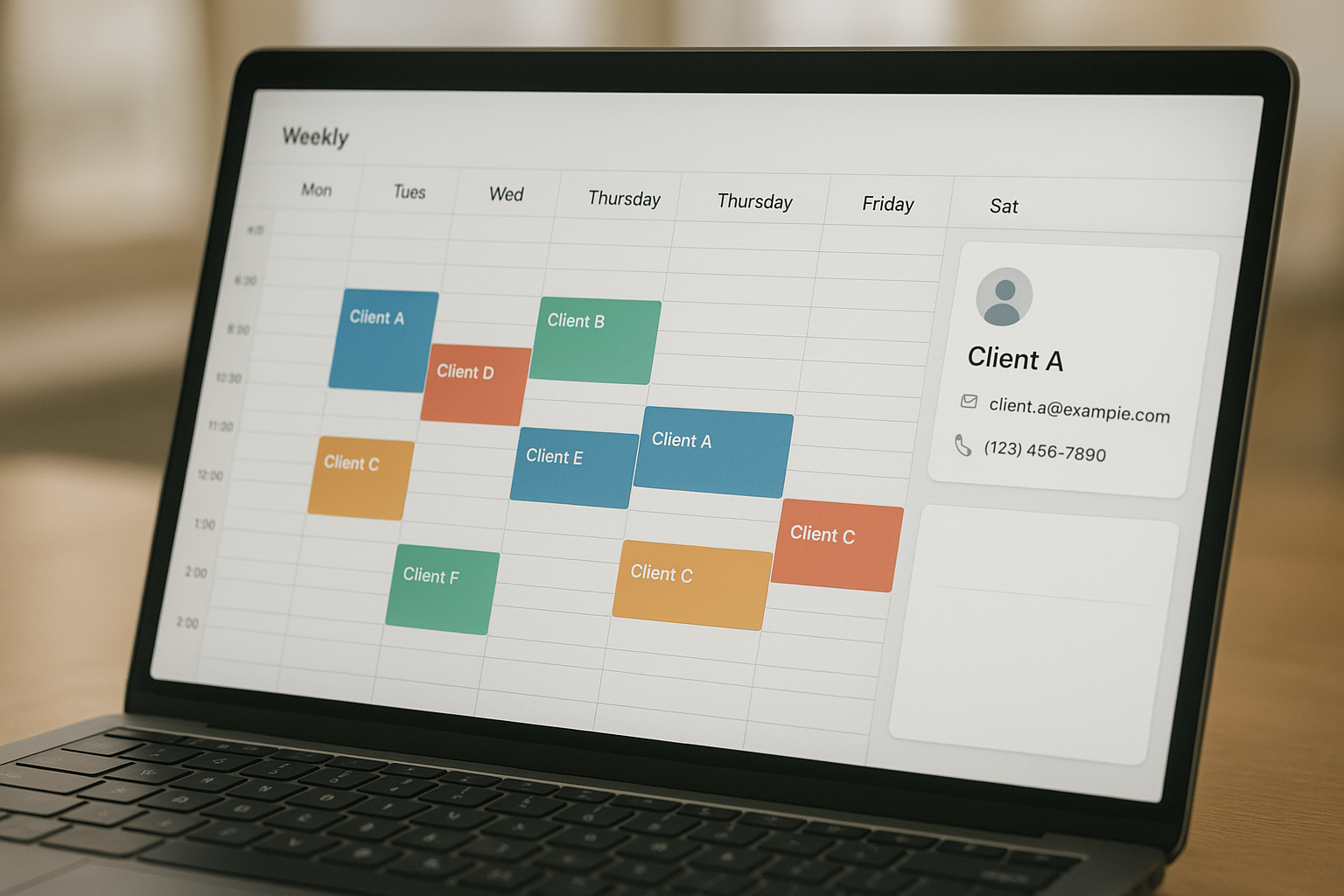
Linking appointments to client records turns a calendar into part of the CRM workflow.
Shared Calendar vs. Individual Calendars: What Changes
The difference becomes obvious the first week a team switches over. With individual calendars, booking a client meeting means checking two or three people's availability by message, then hoping nobody double-books the same conference room. With a shared calendar, that availability is visible instantly, so scheduling takes seconds instead of a back-and-forth thread.
Furthermore, coverage during absences improves dramatically. If a staff member calls in sick, a colleague can open the shared calendar, see exactly what was planned for the day, and step in without needing a handoff call. Individual calendars simply cannot offer that visibility.
Shared Calendars by Industry: Real-World Use Cases
A shared calendar for small business solves slightly different problems depending on the industry. Below are the patterns that show up most often.
Law firms and accounting practices
Filing deadlines and client consultations cannot slip. A shared calendar tied to a CRM lets any attorney or accountant open a matter and instantly see every related appointment, past and upcoming.
Healthcare and wellness practices
Front desk staff need to see provider availability in real time to avoid overbooking exam rooms. In this setting, role-based permissions matter most, since not every staff member should see full patient notes.
Real estate teams
Showings, inspections, and closings move fast and often change at the last minute. A shared calendar means an agent covering for a colleague can see a showing's address and client contact instantly.
Agencies and consultancies
Client calls, internal reviews, and project deadlines all compete for the same hours. A shared view prevents a strategist from booking a client call during a standing internal meeting.
Remote and Hybrid Teams: Time Zones, Mobile Access, and Notifications
As more small businesses hire remote or hybrid staff, a team scheduling tool needs to handle more than a single office timezone. Specifically, look for automatic timezone conversion, so a 2 p.m. meeting set by an East Coast manager shows correctly as 11 a.m. for a West Coast employee without manual math.
Mobile access matters just as much. Field staff, contractors, and traveling salespeople need push notifications for new bookings and changes, not just a desktop view they check once a day. In contrast to email-based scheduling, a well-built shared calendar sends a reminder the moment an appointment is added, edited, or canceled, so nobody shows up to a meeting that no longer exists.
Shared Calendars and CRM Integration
A calendar that stands alone only solves half the problem. The real value shows up when every meeting automatically attaches to the client record it belongs to, so a team member opening a contact sees every past and upcoming appointment without switching apps.
This is the gap that platforms like Atlas are built to close. Atlas combines calendar, CRM, and file storage under one login through a shared identity layer, so a calendar event can link directly to a client's contact record and any related files. For a small professional services firm without a Salesforce administrator on staff, that native connection removes a whole category of manual data entry. You can explore the full shared calendar feature set or review the broader platform features to see how calendar, CRM, and storage fit together. Readers can also review the full platform details at atlascore.app.
Choosing the Right Business Calendar Platform
When comparing options, weigh cost against how much manual reconciliation a tool will eliminate. A cheaper standalone calendar might save a few dollars per user monthly, but if staff still have to copy appointment details into a separate CRM by hand, the real cost is time, not subscription fees.
In particular, businesses with one to 500 users that need enterprise-grade scheduling without a dedicated administrator should prioritize platforms built around a single sign-on, such as Atlas's all-in-one business platform. Because every app shares the same identity layer, there is no separate password to reset and no second support number to call when something breaks. If file storage and document sharing are also part of the evaluation, this comparison of the best Dropbox alternatives for business teams covers how calendar-adjacent file tools stack up. For additional context on how cloud-delivered business software is categorized, see this overview of software as a service models.
Frequently Asked Questions About Shared Calendar for Small Business
What is a shared calendar for small business?
A shared calendar for small business is a scheduling tool that lets every team member view, add, and edit appointments, meetings, and deadlines in one centralized place. Instead of each employee keeping a private calendar, the whole team works from the same up-to-date schedule.
How does a shared calendar reduce scheduling conflicts?
A shared calendar shows everyone's availability in real time, so double-booked meeting rooms and overlapping client appointments become far less common. Because changes sync instantly, there is no risk of working from an outdated copy.
Is a shared calendar the same as Google Calendar sharing?
Not exactly. Google Calendar sharing lets individuals grant view or edit access to personal calendars, while a true shared calendar platform is often built into a broader business system that links appointments to client records, files, and contacts.
How much does shared calendar software cost for a small team?
Pricing varies widely, from free consumer tools with limited features to roughly $5 to $20 per user per month for business-grade platforms with CRM and file integration. Bundled platforms that combine calendar, CRM, and storage can sometimes cost less than paying for three separate subscriptions.
How long does it take to set up a shared calendar for a small business?
Most small teams can set up a basic shared calendar in under an hour, including creating accounts and inviting staff. Full setup, including permission levels and CRM linking, typically takes a few days as the team tests workflows.
What is the difference between a shared calendar and a booking page?
A shared calendar is an internal tool where staff coordinate schedules with each other, while a booking page is a public-facing link that lets clients self-schedule appointments. Many business platforms offer both, with the booking page writing directly into the shared calendar.
What common mistakes do small businesses make with shared calendars?
The most common mistake is letting staff keep a personal calendar alongside the shared one, which quickly causes double bookings. Another is failing to set clear permission levels, which leads to accidental deletions or edits to client appointments.
Can a shared calendar connect to a CRM?
Yes, and this integration is one of the biggest advantages of modern business platforms. When a calendar connects natively to a CRM, every client meeting automatically attaches to that client's record instead of living as a disconnected event.
Why do professional service firms need a shared calendar more than other businesses?
Professional service firms, such as law offices, accounting practices, and consultancies, run on client appointments and deadlines. A shared calendar for small business operations like these prevents missed deadlines and ensures any staff member can step in for a colleague without losing context.
What security features should a business calendar tool include?
Look for role-based permissions, single sign-on, and encrypted data storage so client appointment details stay protected. A unified identity layer across calendar, file, and CRM tools also reduces the number of passwords staff need to manage.
Can a shared calendar work across Windows, Mac, and mobile devices?
Most cloud-based shared calendar platforms sync across Windows, macOS, iOS, and Android automatically. As long as the platform is cloud-native rather than relying on local file syncing, every device shows the same real-time schedule.
What is the best way to migrate from individual calendars to a shared one?
Start by exporting existing calendar data, importing it into the new shared platform, and running both systems in parallel for one to two weeks. This overlap period lets staff confirm nothing was lost before fully retiring the old calendars.
Do shared calendars handle different time zones for remote teams?
Yes, most cloud-based shared calendars automatically convert meeting times to each participant's local time zone. This matters more for remote or hybrid small businesses, since manual timezone math is one of the most common causes of missed meetings.
Can clients book appointments directly into a shared business calendar?
Yes, many shared calendar platforms include a public booking page that writes client-selected appointments directly into the internal shared calendar. This removes a manual step where staff would otherwise have to re-enter a client's request by hand.

Moving from paper and personal apps to one synced system is the core of shared scheduling.
Final Thoughts on Shared Calendar for Small Business
A shared calendar for small business is one of the simplest upgrades a growing team can make, yet it often delivers an outsized return because it touches every client interaction, every meeting, and every deadline. Rather than patching together personal calendars and hoping nothing slips through, small teams that adopt one connected calendar see fewer missed appointments, clearer coverage during absences, and less time spent reconciling who said what to whom. As a result, owners spend less time acting as the unofficial IT department and more time running the business. Whether a team chooses a standalone calendar app or a connected platform like Atlas that ties scheduling directly to the CRM and file storage, the underlying goal stays the same: one accurate schedule that everyone can trust.