A cloud file server for small business is a centralized, cloud-hosted storage system that lets a team open, edit, and save files directly on one authoritative server instead of syncing separate copies to every laptop and desktop. Unlike consumer sync tools, it behaves like the file server IT departments used to keep in a back closet, except it now lives off-site and connects over the internet.
For small and mid-sized firms, this distinction matters more than it sounds. Specifically, it determines whether two people can safely edit the same client folder, whether a laptop crash means lost work, and whether the owner spends weekends untangling "conflicted copy" files. As a result, many growing businesses are rethinking how their files are stored long before they rethink anything else in their tech stack.
Quick answer: A cloud file server for small business replaces scattered sync folders with one server-hosted drive that every employee maps as a standard network drive. Files are opened and saved live on the server, which removes duplicate copies, sync conflicts, and the need for in-house server hardware.

A cloud file server for small business connects every employee to one shared, always-current drive.
What Is a Cloud File Server for Small Business?
A cloud file server for small business is storage infrastructure that functions exactly like a traditional office file server, but runs in a data center instead of a server rack in a closet. Consequently, files are stored once, centrally, and accessed over a network connection rather than copied to every device.
This differs sharply from consumer sync apps. According to the SMB protocol, the standard most cloud file servers rely on, a mapped drive reads and writes directly to the server in real time. There is no local copy waiting to reconcile, which is precisely what eliminates the duplicate-file problem common with sync-and-share tools.
The National Institute of Standards and Technology defines cloud computing broadly as on-demand network access to shared, configurable computing resources. A cloud file server applies that same model specifically to file storage, giving small businesses enterprise-style infrastructure without owning any hardware.
Why Small Businesses Are Ditching Sync-and-Share Tools
Tools like Dropbox, Google Drive, and OneDrive were never designed as true servers. Instead, they copy files down to each device, then quietly try to merge changes later. For a single user, that works fine. For a team editing shared client files, however, it frequently causes conflicted copies, version confusion, and laptops full of outdated duplicates.
In addition, sync tools rarely integrate with the other systems a business runs on. A file saved in Dropbox does not automatically attach to a calendar event or a CRM record. Therefore, staff end up manually copying links and attachments between systems, which wastes time and increases the odds something gets missed.
That time cost is not trivial. Research from the McKinsey Global Institute has found that knowledge workers can spend up to 20% of their workweek searching for or recreating information that already exists somewhere in the organization. A centralized cloud file server for small business directly targets that waste by keeping one current version in one findable place.
How Cloud File Servers Work for Small Teams
Once configured, a cloud file server mounts on Windows as a drive letter, on macOS as a volume, and on Linux as a mount point, using the same SMB protocol that powers traditional office networks. As a result, employees see a familiar network drive rather than a new app to learn.
Behind that familiar interface, however, the architecture is different from a local server. Files, permissions, and backups all live in the provider's infrastructure, which means the business no longer needs to buy, cool, patch, or physically secure a server closet. For firms without a dedicated IT department, that difference alone can justify the switch.
For a deeper walkthrough of connecting a cloud drive on every operating system, this mapped network drive setup guide covers the process step by step.
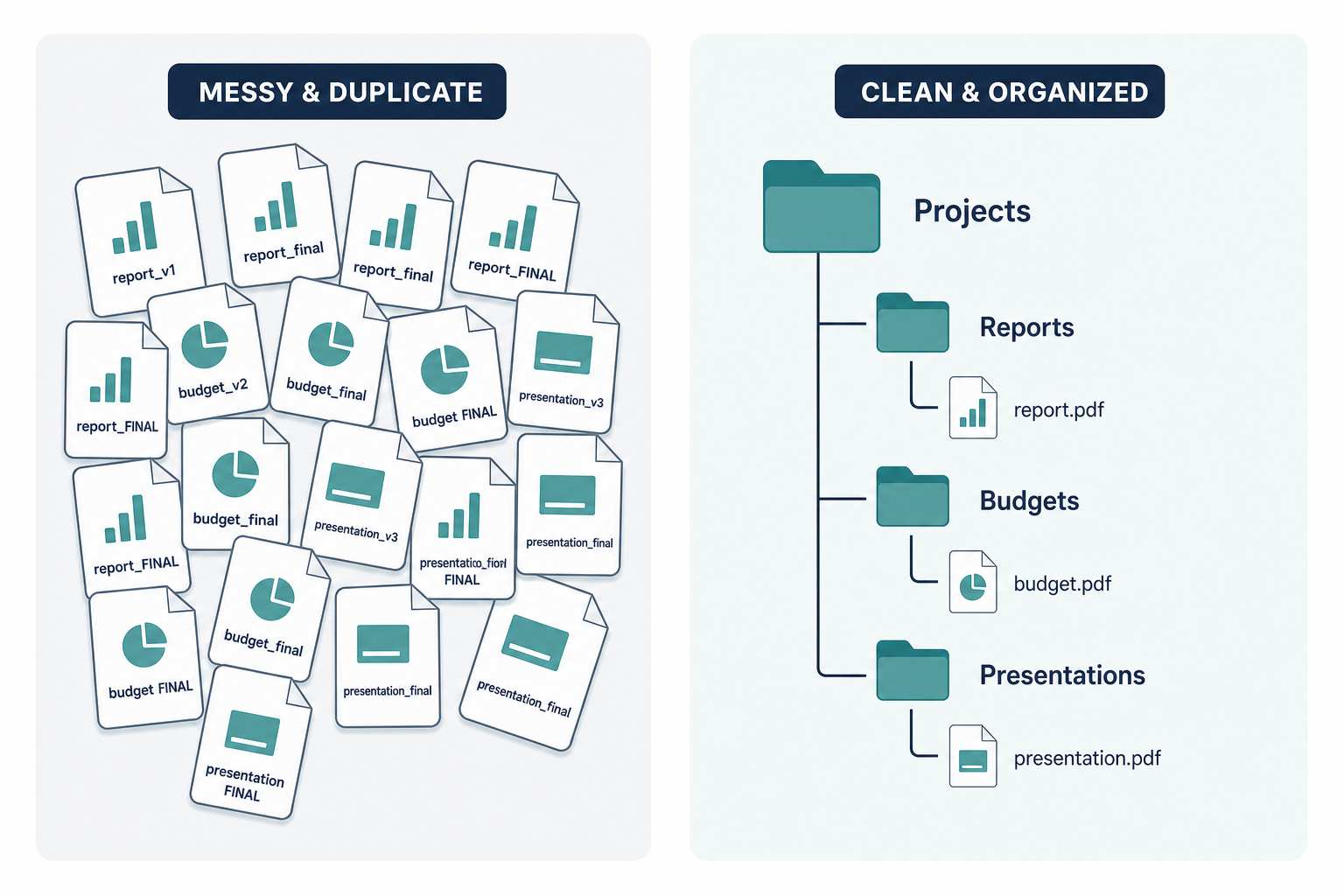
Sync conflicts and duplicate files disappear once a team moves to one shared server-based drive.
Setting Up a Cloud File Server in 5 Steps
Migrating away from scattered folders does not need to be complicated. In fact, most small teams can complete the move in under two weeks by following a structured sequence.
- Audit current file locations. Gather every file location in use today, including local drives, personal cloud accounts, email attachments, and shared drives, so nothing gets left behind during migration.
- Choose a compatible platform. Select a provider that mounts natively as a network drive on Windows, macOS, and Linux using the standard SMB protocol so the transition feels familiar to staff.
- Migrate files and structure folders. Move files into the new server, mirror the folder hierarchy your team already recognizes, and set role-based permissions so each employee sees only what their job requires.
- Map the drive on every device. Connect each employee's computer to the new network drive using the provider's mount instructions, assigning a consistent drive letter or mount point across the team.
- Test access and retire old tools. Verify that every team member can open, edit, and save files correctly, confirm permission levels match job roles, and then decommission redundant sync folders to avoid duplicate copies.
A more detailed checklist, including permission templates and migration timing, is available in this complete cloud file share setup guide.
Cloud File Storage vs. Traditional File Servers: Key Differences
On the surface, a cloud file server and an on-premises server look identical to end users. Both appear as a mapped drive, both respect permissions, and both store files centrally. The differences show up behind the scenes.
An on-premises server requires hardware purchases, cooling, physical security, and someone to apply updates and manage backups. A cloud version shifts that responsibility to the provider, which is particularly valuable for companies with 1 to 500 employees that do not have a Microsoft 365 specialist or Salesforce administrator on staff.
Furthermore, cloud file storage scales more easily. Adding ten new employees to an on-premises server might mean new hardware. Adding them to a cloud file server typically just means adding licenses. For businesses comparing their current sync setup against this model, this guide to cloud file storage without syncing breaks down the tradeoffs in more depth.
Security and Compliance Considerations
Security remains the most common hesitation business owners raise about moving files off-site. However, a well-run cloud file server often ends up more secure than a self-managed server, simply because patching, encryption, and monitoring are handled continuously by a dedicated provider rather than squeezed into an owner's weekend.
At minimum, a small business should confirm the provider encrypts data both in transit and at rest, supports role-based permissions down to the folder level, and keeps audit logs of who accessed or changed a file. In particular, firms in regulated industries such as legal, healthcare, or financial services should ask directly whether the provider's infrastructure supports their specific compliance obligations before migrating.
Equally important is permission hygiene after migration. Even the most secure platform loses value if every employee is given access to every folder by default. Therefore, permissions should be mapped to job roles during setup, not added as an afterthought.
Choosing the Right Cloud File Server Solution
Not every cloud file server solution is built the same way. Some providers focus narrowly on storage and leave integration to third-party connectors, while others design storage as one piece of a broader platform.
Atlas File Storage, built by Hyperion Works, takes the latter approach. It mounts as a true network drive using SMB on Windows, macOS, and Linux, so files behave the way a traditional office server behaves rather than a sync folder. Because it shares the same identity layer as the rest of the Atlas platform, files can connect directly to calendar events and CRM records as those tools roll out, instead of living in an isolated silo.
For teams currently evaluating alternatives to consumer sync tools, this comparison of the best Dropbox alternative for business teams and this overview of software options for businesses without an IT department are useful next steps. You can also review the platform directly at atlascore.app.
A secure, well-permissioned cloud file server protects client files without requiring in-house IT staff.
Frequently Asked Questions About Cloud File Server for Small Business
What is a cloud file server for small business?
A cloud file server for small business is a centralized, internet-hosted storage system that mounts as a network drive, letting teams open and save files directly on the server instead of syncing copies to each device. It replaces the traditional in-office server closet while keeping the same mapped-drive experience.
How does a cloud file server differ from Dropbox or Google Drive?
Sync tools like Dropbox or Google Drive copy files down to every device and reconcile changes afterward, which can create conflicted copies. A cloud file server keeps one authoritative file on the server, so opening and saving happens live, similar to a classic office file server.
How much does a cloud file server cost for a small business?
Pricing typically scales per user per month and depends on storage volume, user count, and included features. Most small business plans fall in a similar range to premium sync-tool subscriptions, but they eliminate the extra cost of a separate on-premises server and its maintenance.
How long does it take to set up a cloud file server?
A straightforward migration for a small team can be completed in a few business days, including file transfer, folder structuring, and permission setup. Larger file libraries or complex permission schemes may take one to two weeks.
Is a cloud file server secure for sensitive business data?
Yes, when the provider uses encryption in transit and at rest, role-based permissions, and audit logging. Businesses handling regulated data should also confirm the provider supports the specific compliance requirements relevant to their industry.
What protocol do cloud file servers use to mount as a network drive?
Most cloud file servers use the SMB protocol, the same standard that powers traditional Windows file sharing, so the drive appears and behaves like any local network share on Windows, macOS, or Linux.
Can a cloud file server replace an on-premises server entirely?
In most small business cases, yes, because the cloud version delivers the same mapped-drive experience without the hardware, cooling, backups, or in-house maintenance an on-premises server requires.
What are common mistakes businesses make when migrating to a cloud file server?
Common mistakes include migrating files without cleaning up duplicates first, skipping a permissions review, and not testing offline behavior before retiring the old system. Rushing the cutover without training staff on the new drive letter or mount point also causes confusion.
Do employees need training to use a cloud file server?
Minimal training is usually needed because the server appears as a familiar network drive. A short walkthrough covering folder structure and permission levels is generally enough for most staff.
What happens to files if the internet connection drops?
Access pauses until connectivity returns, since files live on the server rather than a local copy. Businesses in areas with unreliable internet should pair a cloud file server with a backup connection for continuity.
Can a cloud file server integrate with other business software like CRM?
Platforms built with an integrated architecture can link files directly to CRM records, calendar events, and client profiles. This removes the manual step of attaching documents separately in each system.
What is the best practice for organizing files on a cloud file server?
Mirror the folder structure your team already understands, keep permission groups aligned to job roles, and avoid deeply nested folders that slow down navigation. Consistent naming conventions also prevent duplicate files.
How does a cloud file server handle version control and conflicts?
Because files are opened and saved directly on the server rather than synced locally, there is one live version at a time, which largely eliminates the conflicted-copy problem common with sync tools.
Who should consider a cloud file server instead of traditional sync tools?
Professional and service-based businesses with shared client files, strict permission needs, or frequent collaboration on the same documents benefit most. Teams without a dedicated IT administrator especially benefit from a managed setup.
What size business benefits most from a cloud file server?
Companies with roughly 1 to 500 users tend to see the clearest return, since they need enterprise-grade file management but typically lack an in-house IT specialist to maintain a traditional server.
Final Thoughts
Ultimately, a cloud file server for small business solves a problem most companies have simply learned to live with: scattered files, duplicate copies, and hours lost hunting for the current version of a document. By centralizing storage on a true server rather than a sync folder, teams gain the stability of enterprise file management without needing a dedicated IT department to run it.
As a result, the choice is less about chasing a trend and more about removing a daily tax on productivity. Whether a business starts with a single department or moves the whole company at once, adopting a cloud file server for small business tends to pay for itself through fewer errors, faster file access, and far less time spent as an accidental IT administrator.